
How it works
From the first order to the final bill. Everything works together.
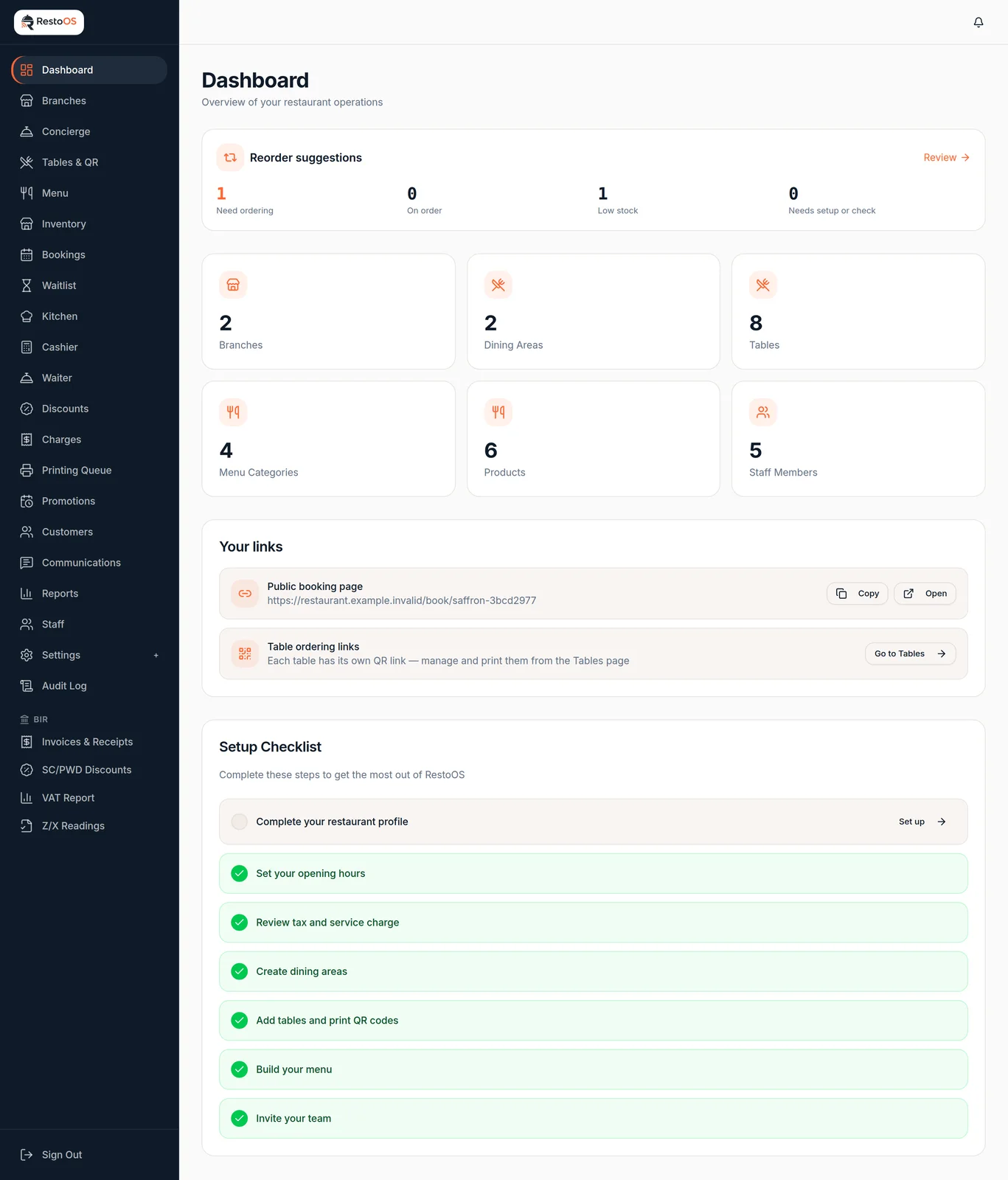
RestoOS connects the table, the kitchen, the cashier and the owner's view, so one order is recorded once and used at every step.
01 / The customer journey
Ten steps, one connected service.
Select a step, or use the arrow keys, to see who does what and where RestoOS fits in. People still seat guests and carry plates.
Step 1 of 10 / Staff
Guests arrive and sit down
Your team welcomes guests and seats them, exactly as you do today.
Seating is a hosting decision made by people. Table status and bookings can be viewed together so staff know which tables are free and who is expected.
Online Reservations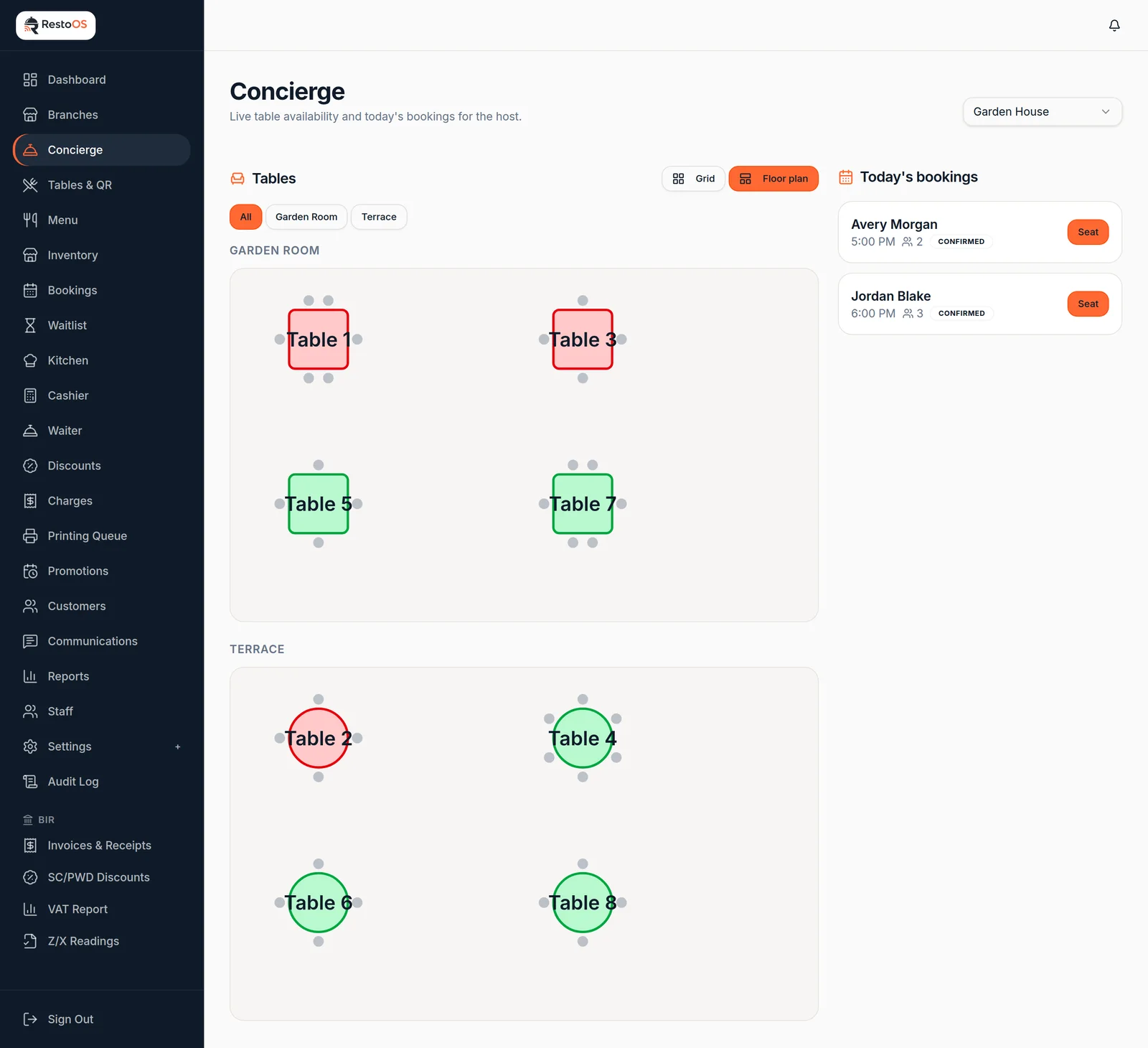
Step 2 of 10 / Guest
Guests scan the table QR code
The code on the table opens the menu in the guest's phone browser.
Each QR code is linked to a table, so the order that follows belongs to the right place. No app download is needed by the guest.
QR Code Ordering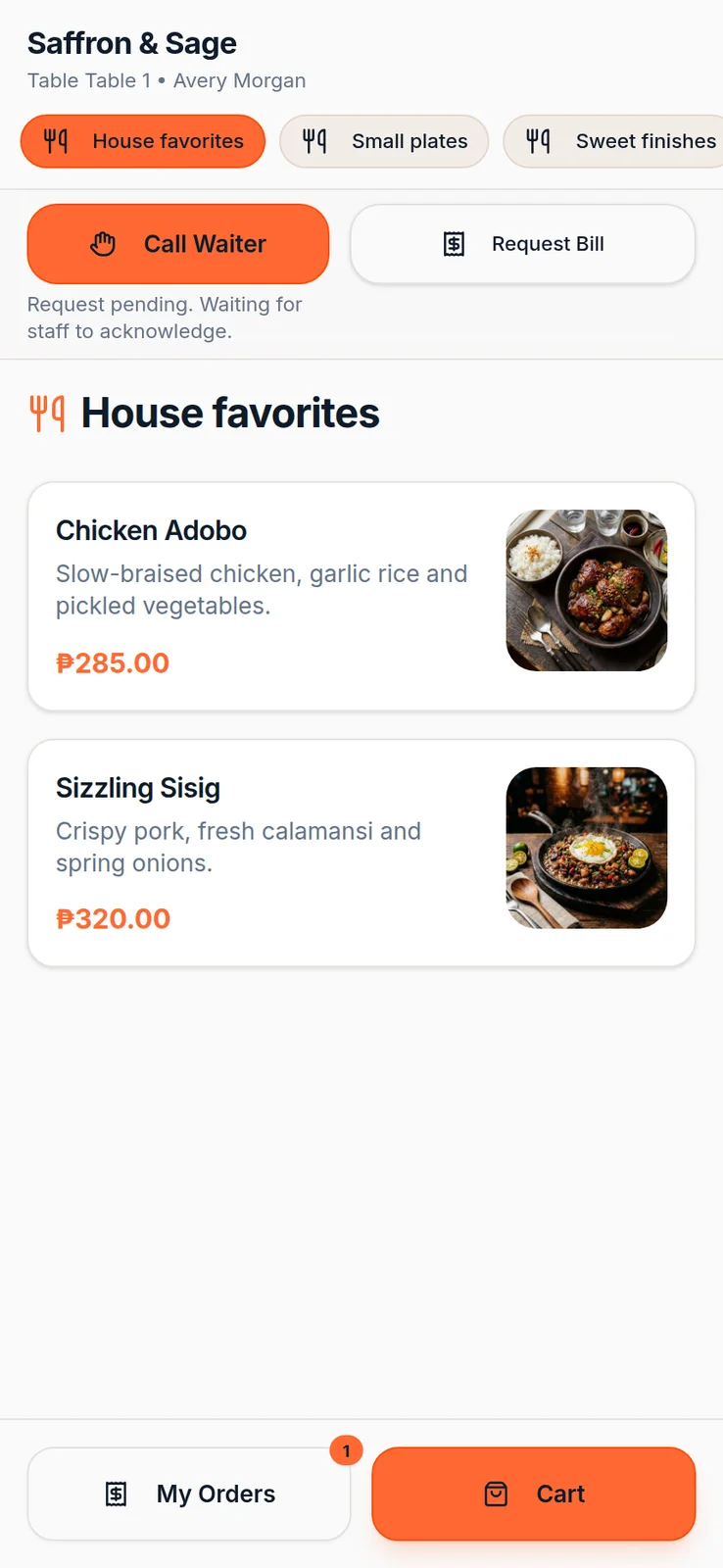
Step 3 of 10 / Guest
Guests browse the digital menu
Categories, dishes and peso prices, kept current from one menu.
Your menu is organised once and shown to guests in a clear, browsable layout.
Menu ManagementStep 4 of 10 / Guest
Guests place their order
The order is sent from the table and recorded against it.
Guests can order more later from the same table. Staff can help guests who prefer not to use their phone.
QR Code OrderingStep 5 of 10 / Kitchen
The kitchen receives the order
Recorded orders appear on the kitchen display, grouped by table.
Cooks work from what the guest selected rather than a handwritten ticket.
Kitchen Management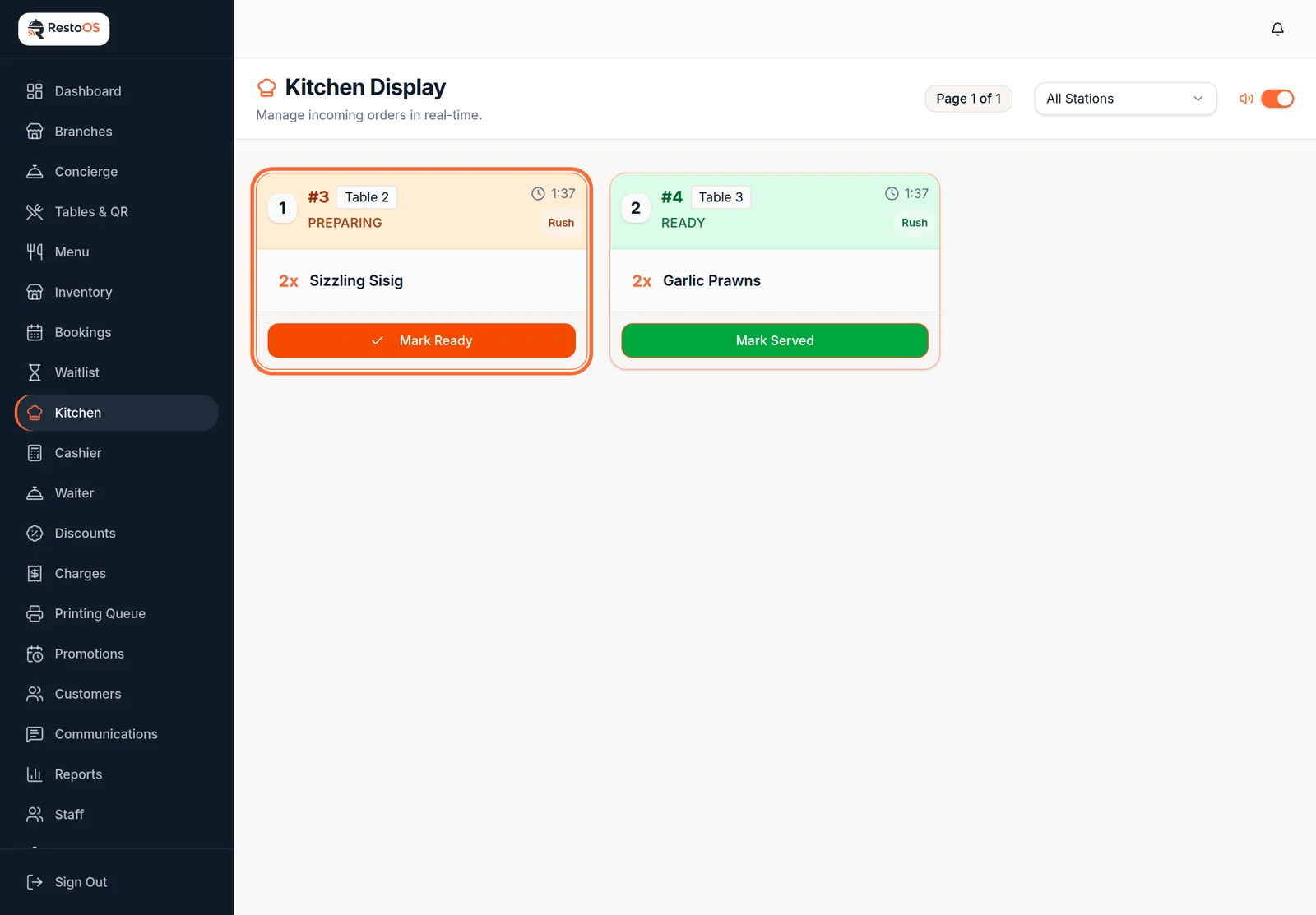
Step 6 of 10 / Kitchen
The kitchen prepares the food
Preparation status moves from queued to ready as work progresses.
The floor can see what is ready and for which table, so fewer people walk to the pass to ask.
Kitchen ManagementStep 7 of 10 / Staff
Servers deliver the order
Your servers carry the dishes to the table, guided by ready status.
Delivery is done by your team. RestoOS helps them see what to take and where.
Kitchen ManagementStep 8 of 10 / Cashier
The cashier settles the bill
An itemised bill built from the table's orders, split between guests if needed.
The cashier opens the table, reviews the items and records the settlement.
Restaurant POS & Billing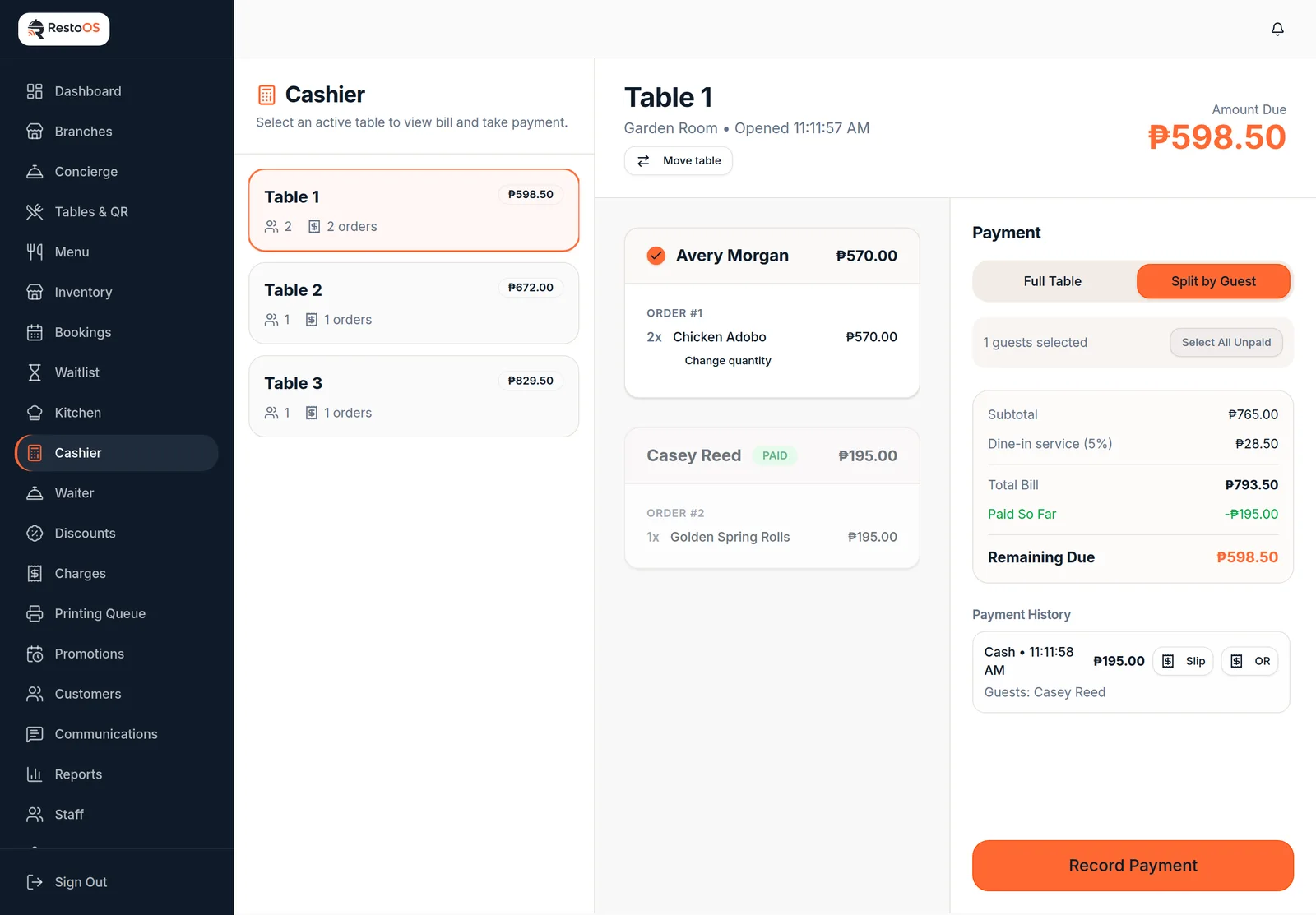
Step 9 of 10 / System
Inventory records are updated
Inventory consumption follows configured order workflow events, which can include preparation-related statuses.
The timing depends on your restaurant's consumption rules. This step explains inventory alongside the service journey; it does not mean stock is always deducted at checkout or after payment.
Confirm enabled inventory tools, ingredient mappings and the consumption rules active for your restaurant in a demo.
Inventory Management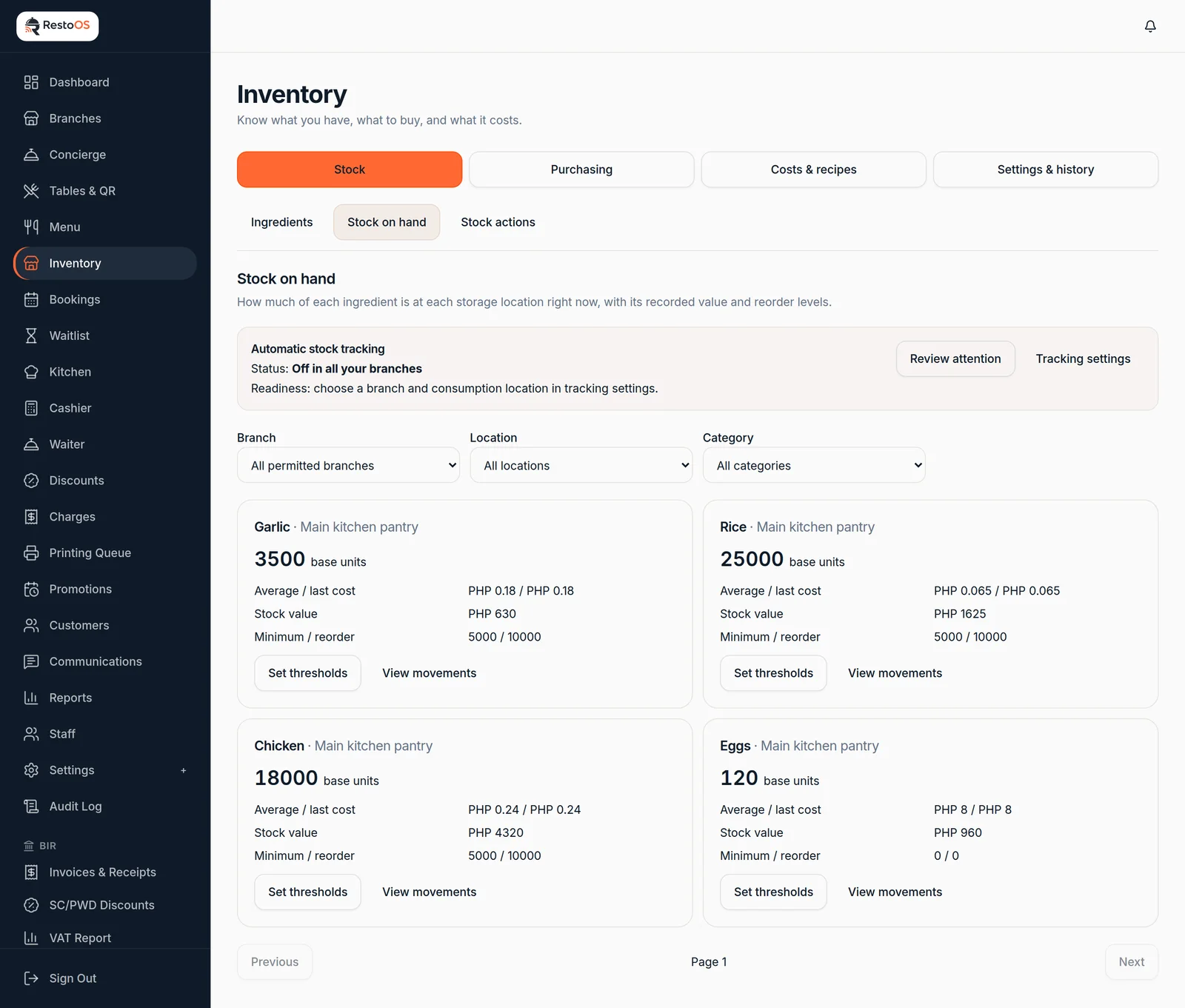
Step 10 of 10 / Owner
Management reviews the day
Order and sales summaries come from what was recorded during service.
Owners and managers review activity without rebuilding a manual tally from paper tickets.
Reporting & Analytics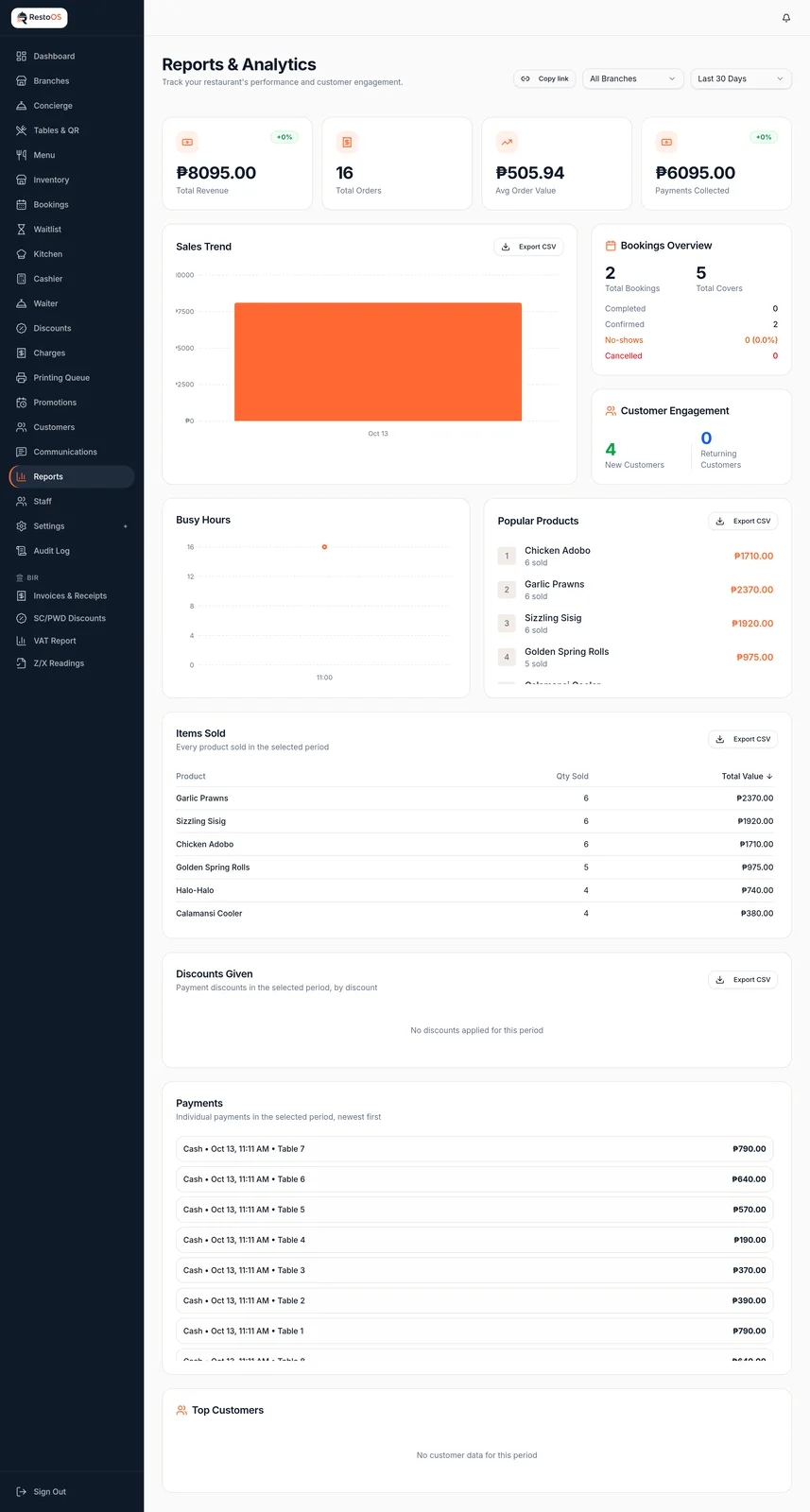
02 / Behind the scenes
One record, read by every team.
Instead of copying an order from a notepad to a ticket to a bill, each part of RestoOS works from the same recorded order and shares only what that team needs.
- QR orderingRecords the order against its table
- Kitchen displayReads the order and adds preparation status
- POS & billingBuilds the bill from the table's orders
- MenuSupplies items and peso prices to ordering and bills
- ReservationsShows who is expected alongside table status
- ReportsSummarises recorded orders and settled bills
03 / Different ways to operate
Start with what your venue needs.
05 / Questions
Setup, training and everyday use.
See the full journey with your own menu.
We will walk a demo table from QR scan to settled bill and talk through your setup.